KOTNOTE PRO / PRACTICAL GUIDES
Pick an idea. Try a tool.
Four small projects to get started with Pro’s visual tools. Real screenshots, with fictional workshop examples you can adapt.
New guides: reset personal choices, approve AI tag suggestions and write your Daily Journal. Read the updated guides
YOUR EXISTING ACCOUNT
Open your Pro toolkit.
- Sign in at KotNote.pro. Already using Free? Use “Open the other site with my notes” in the Free app’s Pro screen, then sign in there with the same account.
- Open Pro in the app. Activate the trial if your account does not already have Pro access. Visiting the Pro website alone does not activate it.
- Choose one exercise below. Use your own sample data and save your work before leaving the tool.
Pro is €15/month. Paid subscriptions are not open yet. A one-calendar-month trial is available once per account, without a card or automatic charge.
PROJECT 01
Turn an idea into a dated roadmap
Build a small launch plan, then adjust it as your thinking changes.
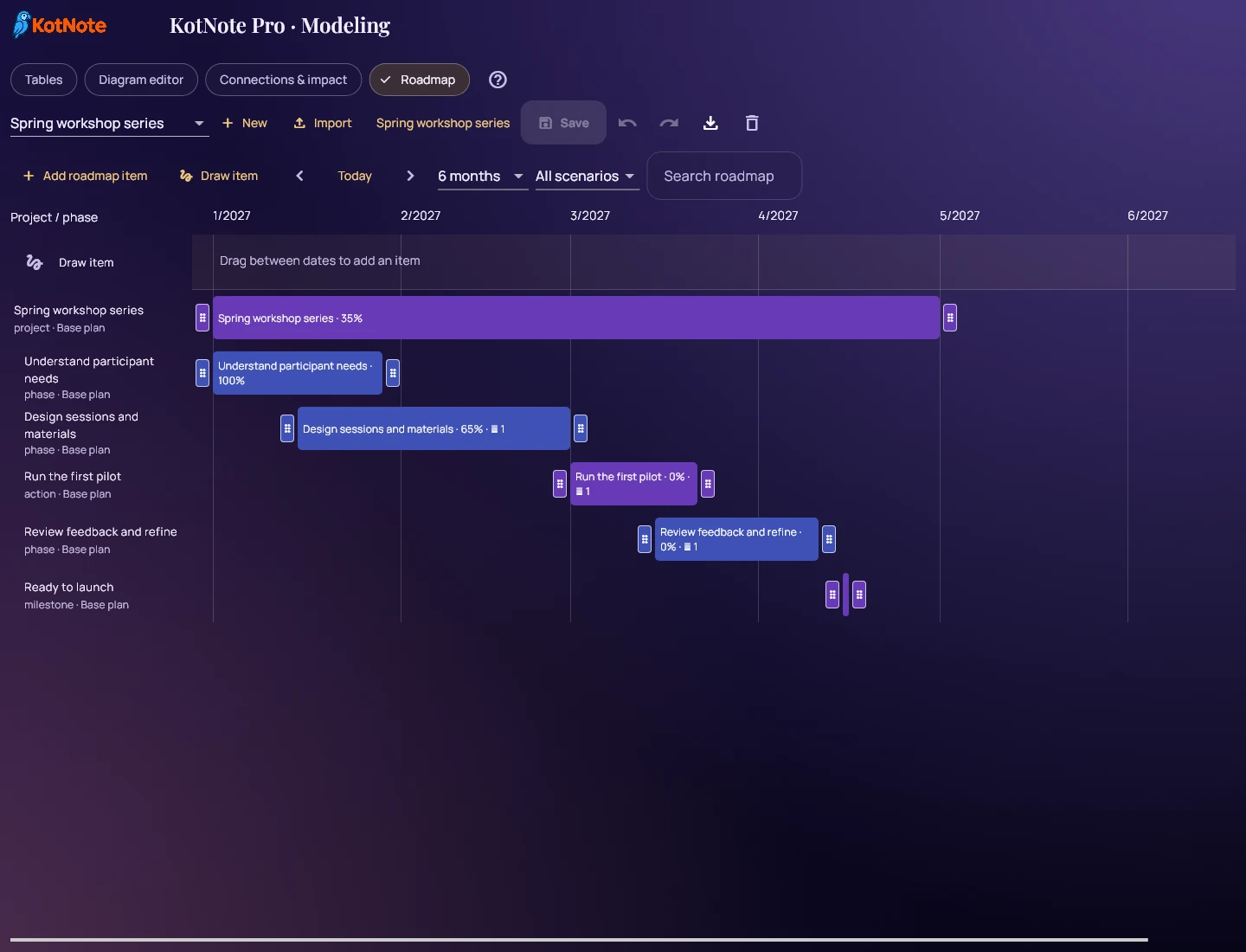
- Open Modeling → Roadmap. Choose New and name the model, for example “Workshop launch”.
- Choose Add roadmap item. Enter a title and an item type: Project, Phase, Action or Milestone. Set Start date and End date; a phase or action can have a parent project/phase.
- For a quicker starting point, drag across dates in the Draw item lane. The item dialog opens with those dates. Complete the details and choose Apply.
- Drag a bar’s body to move the date range, or drag either outer handle to resize it. Add a scenario, status, progress, current state, target state or acceptance criteria when useful.
- Choose the top Save action to persist the whole model. Reopen it from the saved-model selector to continue editing.
Apply accepts the item dialog; Save stores the model. A linked strategy, process or node can connect the plan to existing information.
You have a saved roadmap whose bars span the dates you chose.
PROJECT 02
Separate a visual idea into layers
Keep the sketch, reference image and written ideas together without showing everything at once.
- Open a note’s Canvas and add some text or a drawing. Free includes these basic Canvas tools; layers are a Pro addition.
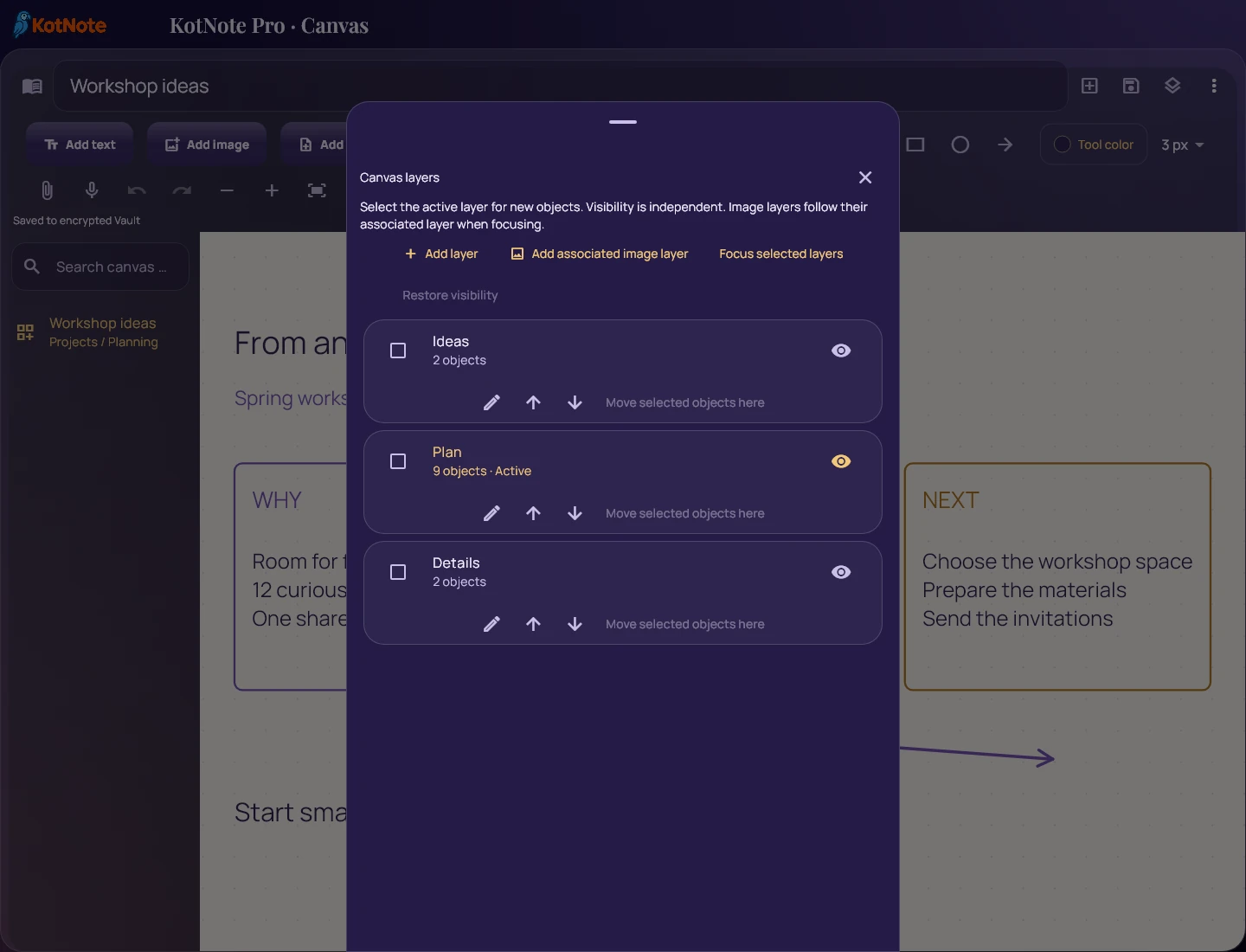
- Select the stacked-layers icon beside Save. Choose Add layer, enter a name such as “Ideas”, and choose Save in the dialog.
- Tap a layer row to make it Active. New objects go on the active layer. To move existing selected objects, use Move selected objects here.
- Use the eye control to hide or show a layer. Rename layer and Move layer earlier/later help organize the stack. Add associated image layer adds an image layer tied to the active layer.
- Select layer checkboxes and choose Focus selected layers. Choose Restore visibility when you want the previous visibility back. Save the Canvas before leaving.
Layer focus changes visibility; it does not delete hidden content. The layer controls currently use English labels in both language settings.
You can focus on one part of your Canvas and restore the rest.
PROJECT 03
Compare two business scenarios
Use a simple example to see how changing an assumption changes the result.
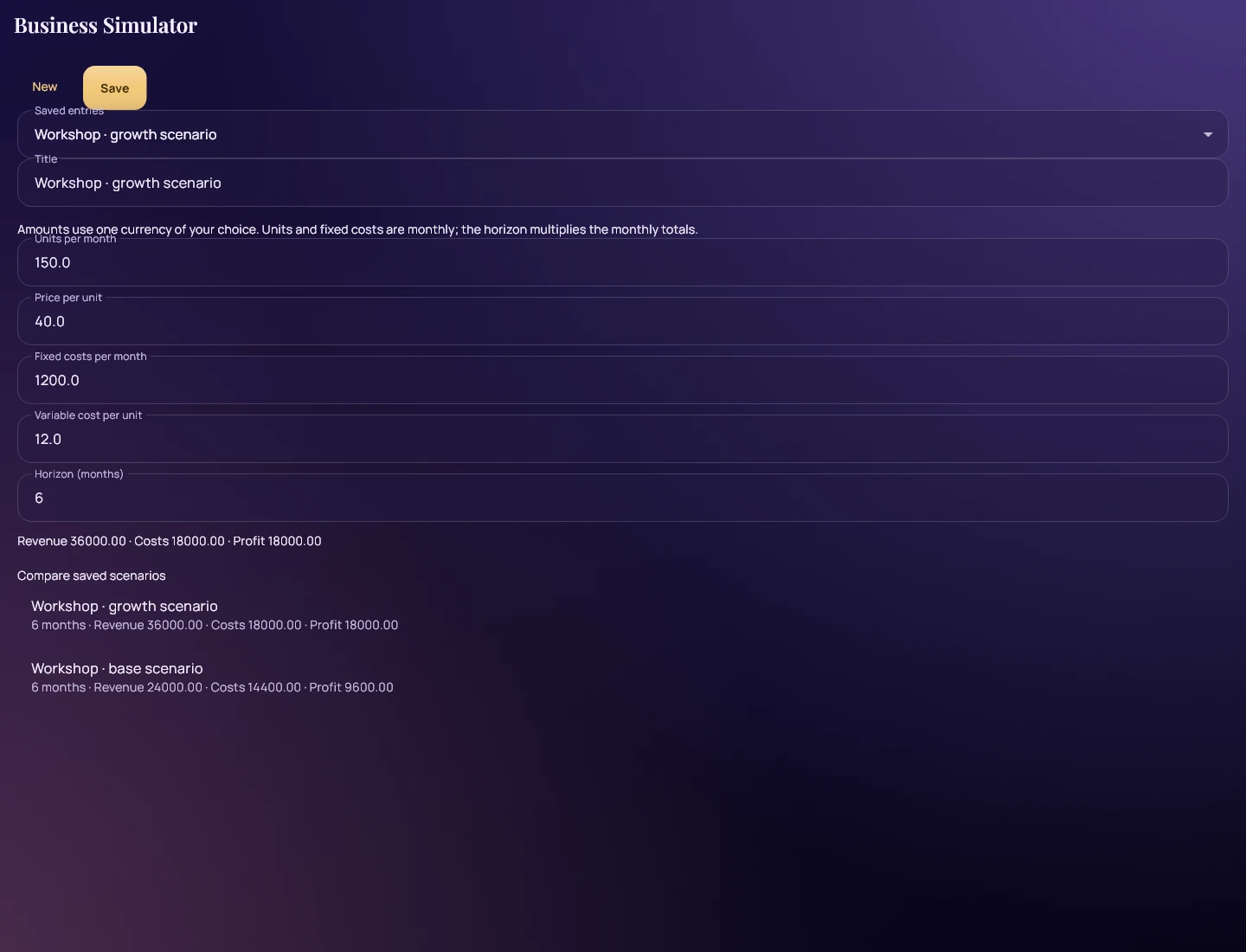
- Open Tools → Business Simulator and choose New. Enter a Title such as “Workshop baseline”.
- Enter Units per month: 100, Price per unit: 40, Fixed costs per month: 1200, Variable cost per unit: 12, and Horizon (months): 6.
- Review the calculated totals, then choose Save. These inputs produce revenue of 24,000, costs of 14,400 and profit of 9,600 over six months.
- Choose New for a separate scenario called “Workshop growth”. Use 150 units and keep the other inputs the same, then Save. This gives revenue of 36,000, costs of 18,000 and profit of 18,000.
- Use Compare saved scenarios to view the results together. Reopen an existing scenario from Saved entries to adjust its assumptions.
Use consistent units and currency across a comparison. These are illustrative arithmetic scenarios, not a forecast; include the costs relevant to your own example. The tool’s controls currently use English labels.
Two saved scenarios make the effect of one changed assumption visible.
PROJECT 04
Put tasks directly on an image
Mark work on a floor plan, a design or a reference picture instead of a separate list.
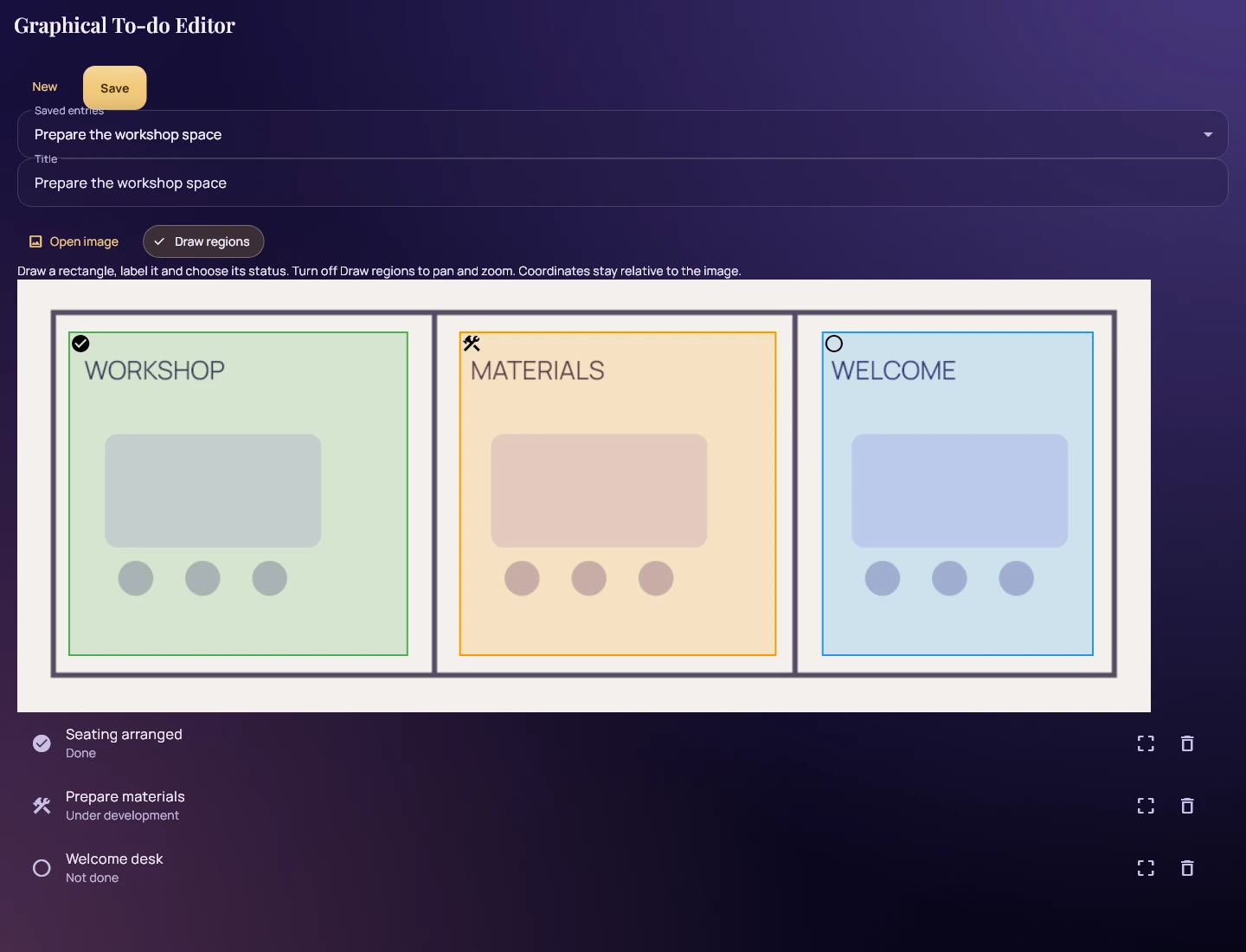
- Open Tools → Graphical To-do Editor, choose New and enter a Title. Choose Open image and select a picture from your device.
- Turn on Draw regions and drag a rectangle over an area of the image. In the Region dialog, enter a Label and choose Not done, Under development or Done.
- Choose Save region, then repeat for the other areas. Choose the top Save action to save the complete board.
- Tap a region in the list to change its label or status. Redraw this region makes your next rectangle replace its bounds. Remove region deletes that annotation.
- Turn off Draw regions to pan and zoom. The regions stay aligned with the image as you change the view.
Save region confirms one annotation; the top Save action persists the board. The tool’s controls currently use English labels.
A saved image board shows what is complete, in progress and still to do.
Keep exploring when you need more.
Modeling also includes portfolio tables, a diagram editor and connection/impact views. Find Idea Generator under Tools. Dictation is also included with Pro. Gmail and Google Calendar imports require their own authorization and run one way into KotNote.
The basics guide covers writing, saving and finding notes, with three short captioned videos. Some labels in those earlier videos may differ from the current app.